GDI - Graphics Device Interface
GDI - Graphics device interface is a basic 2d graphics output system in Windows. Under the term graphics output system we will understand drawing of geometric fugures and text output. So, GDI just draws pictures and outputs text.
GDI is written on winAPI, it means it's just a set of functions and structures on plain C. Firstly we will learn GDI, then we'll look on more complex 2d graphics output systems: GDI+ and Direct2D.
Device context
Device context is a place where the graphics is drawn, plus tools for drawing graphics. We can get Device Context of the window and then we can draw something in that window. You can get Device Context of a printer and draw figures on the printed page. Device Context allows using of brushes, pens, bitmaps for graphics output.
How to get Device Context
For getting the Device Context window handle (HWND) is used. Device Context in program is represented by the type HDC - it's redefined pointer on void. To get Device Context you need to use function getDC:
!1?HDC hDC = GetDC(hWnd);?1!After that you can use variable hDC for drawing in the window hWnd. After drawing you need to release Device Context with function ReleaseDC. Let's look at the code, which draws rectangle and outputs text string in the window:
!1?WNDCLASS wc; wc.style = CS_OWNDC; wc.lpfnWndProc = WndProc; wc.cbClsExtra = 0; wc.cbWndExtra = 0; wc.hInstance = hInstance; wc.hIcon = LoadIcon(NULL, IDI_APPLICATION); wc.hCursor = LoadCursor(NULL, IDC_ARROW); wc.hbrBackground = (HBRUSH)(6); wc.lpszMenuName = 0; wc.lpszClassName = L"class"; RegisterClass(&wc); HWND hWnd = CreateWindow(L"class", L"GDI", WS_OVERLAPPEDWINDOW, 100, 100, 300, 300, NULL, NULL, hInstance, NULL); ShowWindow(hWnd, nCmdShow); UpdateWindow(hWnd); HDC hDC = GetDC(hWnd); // getting the Device Context Rectangle(hDC, 50, 50, 200, 200); // drawing the rectangle TextOut(hDC, 5, 5, L"Hello!!!", 8); // outputting the text ReleaseDC(hWnd, hDC); // releasing the Device Context?1!Function Rectangle gets these arguments: device context, coordinates of the left top angle, coordinates of the right bottom angle.
Function TextOut gets these arguments: device context, coordinates of the left top angle, text string, number of symbols in the string.
Function Release gets these arguments: window, device context.

In this example drawing is going before the main while cycle. The picture will be drawn only one time. If you minimize and then restore the window, the drawing will vanished. You just need to place the drawing code in the while cycle, as it was done in the attached project gdi_0.1, then the window will be redrawn at every iteration.
Graphics output in several windows
When we fill in WNDCLASS structure to register window class of the application in Windows, we fill in the field style:
!1?wc.style = CS_OWNDC;?1!This field sets the style for the class of windows. Value CS_OWNDC tells us that for every window of this class will be created own device context.
Let's look at the example gdi_0.2. In this application two windows are created. The second window you can not resize, it don't have system menu and exit button. I'm just didn't point window style (third argument is null):
!1?HWND hWnd2 = CreateWindow(L"class", L"GDI2", 0, 300, 100, 200, 200, NULL, NULL, hInstance, NULL);?1!Every window of this program has it's own device context:
!1?HWND hWnd1 = CreateWindow(L"class", L"GDI", WS_OVERLAPPEDWINDOW, 100, 100, 200, 200, NULL, NULL, hInstance, NULL); HWND hWnd2 = CreateWindow(L"class", L"GDI2", 0, 300, 100, 200, 200, NULL, NULL, hInstance, NULL); ShowWindow(hWnd1, nCmdShow); UpdateWindow(hWnd1); ShowWindow(hWnd2, nCmdShow); UpdateWindow(hWnd2); MSG msg; HDC hDC = GetDC(hWnd1); Rectangle(hDC, 50, 50, 100, 100); TextOut(hDC, 5, 5, L"First window!!!", 15); ReleaseDC(hWnd1, hDC); while (true) { if (PeekMessage(&msg, 0, 0, 0, PM_REMOVE)) { if (msg.message == WM_QUIT) break; TranslateMessage(&msg); DispatchMessage(&msg); } hDC = GetDC(hWnd2); Rectangle(hDC, 50, 50, 100, 100); TextOut(hDC, 5, 5, L"Second window!!!", 16); ReleaseDC(hWnd2, hDC); }?1!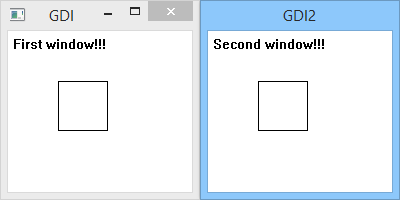
First window is drawn before main loop. That's why if you minimize and restore this window the contents will be lost. Drawing of second window is taking place in every iteration of main loop.
Conclusion
In this lesson we met GDI - basic 2d graphics output system in Windows. In next lessons we will learn how to use different aspects of GDI: pens and brushes.
We will draw graphics in main loop - such graphics output is more suited for games. But this is not usual for Windows applications. Later we will learn the standard way of using GDI in Windows applications.